How to Take Screenshots on Windows 10 and 11

Taking screenshots on Windows 10 and 11 comes down to a handful of key combinations, and the confusing part is that the same key has changed job over the years. Print Screen used to do everything on its own. Now it copies to the clipboard, Windows + Shift + S opens a selection overlay, and on Windows 11 the Snipping Tool can record your screen as well as capture it. This guide covers every shortcut on both versions, where the file lands and what it is called, what the annotation tools do, and the reason a capture sometimes comes back completely blank.
Take screenshots on Windows 10 and 11 with the keyboard
Here is the whole map. Print Screen alone is still the fastest option when you want to paste a capture straight into a message or a document.
| Shortcut | Result | Notes |
|---|---|---|
| PrtScn | Copies the whole screen to the clipboard | Nothing is written to disk. Paste with Ctrl + V |
| Alt + PrtScn | Copies only the active window to the clipboard | Click the window first so it is the active one |
| Win + PrtScn | Saves a PNG of the whole screen to Pictures\Screenshots | The quickest way to keep a capture |
| Win + Shift + S | Opens the selection overlay with rectangle, freeform, window and full screen modes | Snip and Sketch on Windows 10, Snipping Tool on Windows 11 |
| Win + G | Opens the Xbox Game Bar | Performance panel and recording controls |
| Win + Alt + R | Starts and stops a recording of the focused app | App window only, not the whole desktop |
| Win + Ctrl + R | Starts and stops a screen recording in the Snipping Tool | Windows 11 version 22H2 and later |
| Win + V | Opens clipboard history | Pastes a Print Screen capture without an image editor |
Two behaviours differ between the two releases. Windows 10 version 1803 and later opens Snip and Sketch when you press Windows + Shift + S, while Windows 11 version 22H2 and later open the Snipping Tool overlay. Both look nearly identical, and both give you the same selection modes, so nothing you learn here stops working when you change machines.
PrtScn and Win + PrtScn: clipboard or saved file
Print Screen on its own copies a picture of the entire screen, including the taskbar, to the clipboard. No file is created, which is why people press it, see nothing happen and assume it broke. Open Paint, an email or a chat window and press Ctrl + V and the capture appears. Pressing Windows + V opens clipboard history, which is useful when you copied something else by mistake afterwards.
Windows + PrtScn does the opposite. It writes a PNG file straight into the Screenshots folder inside your Pictures folder and names it Screenshot (1).png, then Screenshot (2).png and so on. Alt + PrtScn is the one people miss: with a window selected, it copies only that window rather than the whole desktop, which saves you cropping later.
Windows 11 also gives you a choice under Settings, Accessibility and Keyboard, where a Print Screen key option decides whether the key copies to the clipboard or opens the Snipping Tool instead. Leave it on the screenshot option if you like the old behaviour, or switch it to the overlay if you would rather pick a region every time.
Win + Shift + S and the selection overlay
Press Windows + Shift + S and the screen dims, with a row of buttons across the top. Rectangle is the one you will use most, Freeform lets you draw any shape, Window makes you pick a window from a list of open ones, and Full screen grabs everything. Drag to select and release the mouse, and a small toolbar appears next to the selection with three choices: save it to a file, edit it, or copy it to the clipboard. Press Esc at any point to cancel.
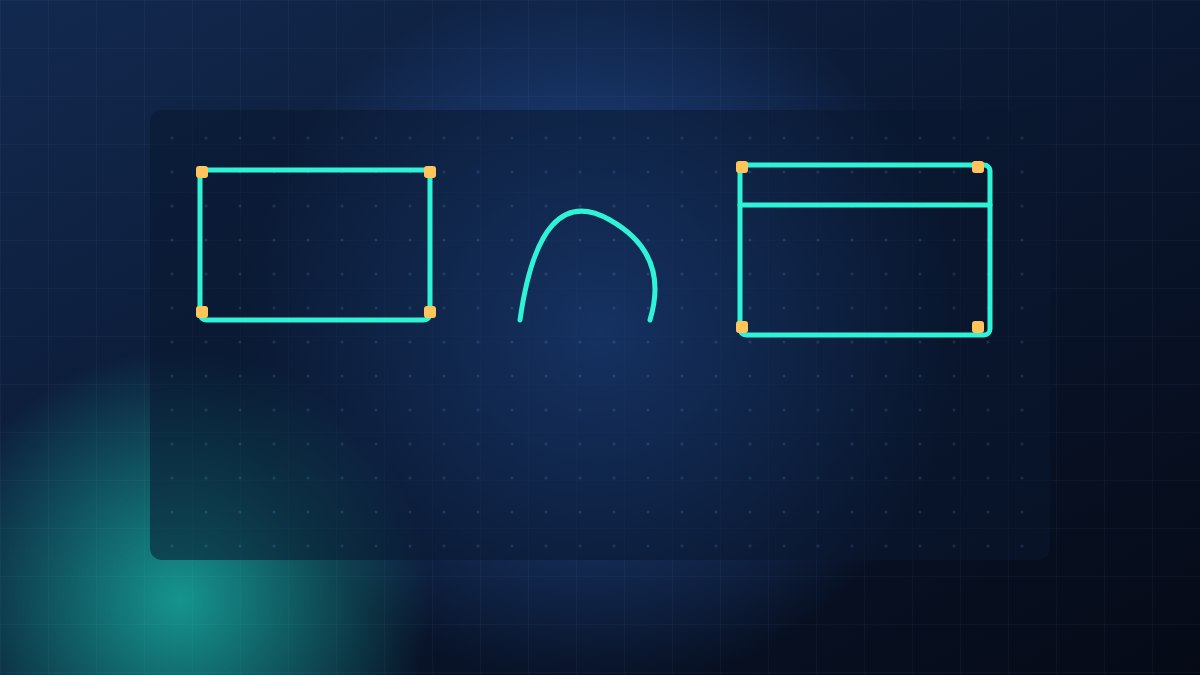
The dropdown beside the new snip button sets a delay of 3, 5 or 10 seconds. It matters more than it sounds: some menus close the moment you click them, so a capture of a right click menu needs the delay. With the timer set, hit Windows + Shift + S, choose the shape, then open the menu you want before the countdown finishes.
Annotate a snip, or copy it instead of saving it
Choosing the pencil icon opens the editor, which is where the useful work happens. The toolbar carries a pen, a highlighter, a shape tool for arrows and boxes, a text box, and a colour picker that changes the ink you are about to use. The highlighter lays down a translucent stroke, so you can highlight a line of text without hiding it. On Windows 11 the Snipping Tool also has Text actions, which pulls the words out of the picture as editable text, and a mode that reads a QR code for you.
If you do not need annotations, press the copy button instead of the pencil and the image goes to the clipboard with no file created. That is the right choice when you are pasting into a message or a document. The save button opens a normal dialog where you pick the folder and type the file name, which is where you control the destination rather than accepting the default Screenshots folder.
Screen recording in Windows 11
The Xbox Game Bar is the older recording route and it works on both releases. Windows + G opens the panel, which shows a performance overlay with frame rate, processor load and memory use. Windows + Alt + R starts and stops a recording of the application you are currently using, and the capture widget lets you take a screenshot from the same place.
Windows 11 version 22H2 and later add a second option. Windows + Ctrl + R starts and stops a screen recording of the whole desktop, and the finished MP4 is saved into the Videos folder under your user profile. The Snipping Tool is now a separate pinned application rather than a small built in panel, so you can launch it from the Start menu or search for it by name, and the same shortcut still opens its overlay for still captures.
One limitation applies to every recorder in Windows. Protected video, which includes most streaming services and some Blu-ray playback, is drawn through a hardware overlay that no capture tool can read, so it records as a black rectangle. That is by design and no driver update will change it.
Where the file lands and how it is named
The default location for the Windows + PrtScn captures is C:\Users\YourName\Pictures\Screenshots, and you can confirm it on your own machine by pressing Windows + R and typing %USERPROFILE%\Pictures\Screenshots. If OneDrive is set to back up your Pictures folder, the captures appear under OneDrive\Pictures\Screenshots instead, and File Explorer will show the OneDrive location in the address bar.

Two naming habits are worth knowing. Captures from Windows + PrtScn are numbered, so a folder can fill with Screenshot (12).png and none of them will tell you what they show. Captures saved from the Snipping Tool app usually carry a date and time instead, for example Screenshot 2026-10-22 143012.png, which is easier to search later but still needs tidying. When you have captured a run of steps to send to someone, batch renaming files in Windows turns the numbered list into readable names in one pass, and zipping the folder before you email it saves every image attaching separately. If the archive refuses to open afterwards, fixing Windows zip extraction errors covers the usual causes.
When the screenshot comes out blank
An empty capture is nearly always the graphics driver rather than the keyboard, and it happens most often on a laptop with switchable graphics, where the screen is drawn by one chip and the capture is taken from another. The image comes back black or shows the wallpaper with no windows on it. Installing the current driver from Intel, NVIDIA or AMD fixes most of these cases, and updating graphics drivers safely walks through doing that without losing your display if something goes wrong.
The other common cause is the key itself. Many laptop keyboards put Print Screen on the Fn row, so the combination you need is Fn + PrtScn. On a full size keyboard the physical key may be labelled Insert, PrtSc or SysRq, because that cluster shares those functions, so look for the small print under the key before you assume the keyboard is broken. Some laptops also have an Fn lock, toggled with Fn + Esc, that swaps the whole Fn row between shortcut and standard function behaviour. Press it once and try the capture again.
To narrow it down in a minute, press Windows + Shift + S and capture a single window. If the window capture works and the full screen grab does not, the keyboard is fine and the capture path is the problem. Remote desktop and screen sharing software can also intercept Print Screen, so close any such tool before you start blaming Windows.
Frequently asked questions
Where are screenshots saved on Windows 11?
Windows + Print Screen saves them to the Screenshots folder inside Pictures, usually at C:\Users\YourName\Pictures\Screenshots. If OneDrive backs up your Pictures folder, the same captures appear in OneDrive\Pictures\Screenshots instead. Press Windows + R and type %USERPROFILE%\Pictures\Screenshots to see the real path on your machine.
How do I screenshot one specific window?
Click the window you want so it is the active one, then press Alt + Print Screen to copy just that window to the clipboard. For a saved file with more control, press Windows + Shift + S and choose the window shape button, which lets you pick the window on screen.
Can Windows 10 record my screen?
Yes, through the Xbox Game Bar. Press Windows + G to open it, then Windows + Alt + R to start and stop a recording of the focused application. The dedicated screen recorder inside the Snipping Tool is a Windows 11 feature, added in version 22H2.
How do I copy a screenshot without saving a file?
Press Windows + Shift + S, make your selection and choose the copy button on the little toolbar that appears. The image is then on the clipboard ready to paste. A plain Print Screen press does the same thing for the whole screen, and Windows + V opens clipboard history if you want to pick an older capture.
What is the difference between the Snipping Tool and Snip and Sketch?
Snip and Sketch arrived with Windows 10 version 1803 and handled the selection overlay and the editing tools. Windows 11 version 22H2 replaced it with the Snipping Tool app, which keeps the overlay and the annotation tools and adds screen recording. On both systems, Windows + Shift + S opens the overlay either way.
What to remember
- PrtScn copies to the clipboard, Win + PrtScn saves a file, and Alt + PrtScn grabs the active window only.
- Win + Shift + S is the overlay that gives you a rectangle, freeform, window or full screen selection.
- Set the delay timer before capturing a menu that disappears when you click it.
- The Snipping Tool in Windows 11 is a separate app and adds screen recording with Win + Ctrl + R.
- Captures land in Pictures\Screenshots, which moves into OneDrive when OneDrive backs up Pictures.
- A blank capture usually means a graphics driver or a remapped Fn key, not a broken keyboard.
Try it now: press Windows + Shift + S, capture a single window, then open the editor and draw one arrow on it. If the capture comes back blank, repeat the test with Fn + PrtScn, and if that still fails, the next step is the graphics driver rather than anything else.